Learn i-CLASSi
Use this guide as the working documentation for the i-CLASSi Studio tabs. It explains what each module is for, how to search and filter records, and what each table column means.
- Start in i-CLASSi to find the disease entity in the InterLymph hierarchy.
- Open Lookup when you need the hierarchy path, mapped UMLS CUI, public UMLS source content, or live UMLS metadata with your own API key.
- Use Mapping to inspect vocabulary mappings for the selected LNIC code.
- Use i-GWASdb to review linked GWAS records.
- Use Abbreviations whenever terminology or acronyms are unclear.
- Use Data Sources to review version-specific source snapshots, counts, reference builds, and provenance notes.
Interface Basics
Version selector
The selector in the top-right corner controls the data release loaded by data-driven tabs. The beta release loads the full matched classification, mapping, and GWAS JSON files. Prototype versions are smaller subsets included to demonstrate version switching.
Global search
Use the large search box above a table to search across all visible columns. This is useful for broad terms such as an entity name, LNIC code, vocabulary code, gene symbol, or author.
Column filters
Each table column has its own filter under the column header. Text boxes support partial matches; dropdown filters restrict the table to exact values listed in that column.
Abbreviation tooltips
Recognized abbreviations are marked with a dotted underline in classification tables, hierarchy trees, and L1-L6 context panels. Hover over the term, focus it with the keyboard, or tap it on a touch device to see the full name.
Export
Use Export CSV to download the currently filtered table. Apply search and column filters first when you only need a subset.
Hierarchy Navigator
The Hierarchy Navigator provides a consistent L1-L6 view of the i-CLASSi classification in the i-CLASSi, Lookup, Mapping, and i-GWASdb tabs.
Browse the hierarchy
The navigator initially shows L1 branches. Click a branch arrow to reveal its downstream levels. L5 represents entity type and L6 represents subtype(s).
Search and expand
Enter an entity, subtype, hierarchy label, or LNIC code in the navigator search. Matching paths expand automatically and matching text is highlighted. Expand L2, L3, L4, or all levels when you want a broader overview.
Filter linked tables
In i-CLASSi, Mapping, and i-GWASdb, selecting a branch filters the table to records associated with the LNIC codes contained in that branch. A terminal branch narrows the result to its entity or subtype.
Hide or reset
Use the blue Hide navigator button to give the table or detail panel more room. The button changes to Show navigator so the panel can be restored. Use Clear Selection to remove the hierarchy search and branch filter.
i-CLASSi Explorer
The i-CLASSi tab is the main classification reference. It lists InterLymph lymphoid neoplasm entities and connects the updated hierarchy to earlier WHO/InterLymph labels.
How to use it
- Use the Hierarchy Navigator to expand from L1 to downstream levels and filter the table.
- Use the hierarchy search to find a term and automatically reveal matching branches.
- Use column filters when you know a specific LNIC code, category, family, entity type, or subtype.
- Select a terminal entity when you want to inspect its context before opening Lookup or Mapping.
Column glossary
- Source
- Source classification or release from which the row was derived.
- Entry ID
- Internal row identifier used to group records in the source dataset.
- LNIC Code
- Stable i-CLASSi identifier for a lymphoid neoplasm classification entity.
- WHO-HAEM5 Category
- WHO-HAEM5 high-level disease category.
- WHO-HAEM5 Family-Class
- WHO-HAEM5 family or class grouping.
- WHO-HAEM5 Entity-Type
- WHO-HAEM5 entity label.
- Interlymph 2010 Entity-Type based on WHO-HAEM4
- Earlier InterLymph entity name used for comparison with the updated classification.
- Lineage-Nature
- Top-level biological lineage or nature of the neoplasm.
- Major Group
- Broad i-CLASSi grouping below lineage.
- Category
- Intermediate classification category.
- Class-Family
- Family-level grouping used to organize related entities.
- Entity-Type
- Main i-CLASSi disease entity name.
- Subtype(s)
- Specific subtypes or variants grouped under the entity.
Lookup
The Lookup tab is the terminology workspace for a selected i-CLASSi entity. It combines the L1-L6 hierarchy path, mapped vocabulary identifiers, versioned public UMLS cache content, and optional licensed live UMLS retrieval.
How to use it
- Search the classification tree by disease name, subtype, abbreviation, or LNIC code.
- Use Expand L2, L3, or L4 to open the tree to a controlled depth without expanding everything.
- Click a terminal branch to load the disease detail panel, hierarchy path, and mapped UMLS CUI list.
- Select a mapped CUI to inspect public, versioned UMLS cache content. This public cache appears without requiring a user API key.
- Use licensed live lookup only when you need additional UMLS atoms, relations, broader concepts, narrower concepts, or current metadata beyond the public cache.
Public cache versus live lookup
- Public UMLS cache
- Versioned content bundled with i-CLASSi. It is limited to selected CUI, AUI, names, source codes, term metadata, and source-attributed definitions from MSH, NCI, HPO, MEDLINEPLUS, ORPHANET, and PDQ. Category 3/restricted vocabularies are excluded from the public interface.
- Licensed live lookup
- Optional UMLS API retrieval performed in the browser with the visitor's own API key. Returned live tables include atoms, relations, broader concepts, and narrower concepts, and can be downloaded as TXT for the current browser session.
- API key handling
- The API key is used for the current browser session lookup. Do not share your key, paste it into screenshots, or commit it to project files.
How to get a UMLS API key
- Open the official NLM UMLS page: Unified Medical Language System (UMLS).
- Use the NLM/UTS sign-up or request-license link to create an individual UMLS Terminology Services account.
- Review and accept the UMLS license terms. NLM states that UMLS licenses are issued to individuals, not groups or organizations, and that there is no charge for licensing the UMLS from NLM.
- After your UTS account is active, open your UTS profile/API-key area and copy your API key.
- Return to i-CLASSi Lookup, select a mapped CUI, paste the key into the live lookup field, and click Retrieve with my UMLS API key.
Lookup fields
- Hierarchy Navigator
- Expandable L1 to L6 hierarchy. L5 represents entity type and L6 represents subtype(s).
- Selected disease
- The terminal hierarchy item currently selected by the user.
- Mapped CUIs
- UMLS Concept Unique Identifiers linked to the selected i-CLASSi entity through the mapping table.
- Public UMLS content
- Cached source-attributed UMLS definitions and selected atom-level fields from public-compatible sources. Displayed atom fields include CUI, AUI, name, source abbreviation, term type, and source code.
- Live UMLS lookup
- Licensed UMLS API lookup using the visitor's own key. Use it for source-attributed UMLS details that are not included in the public i-CLASSi cache.
Mapping Explorer
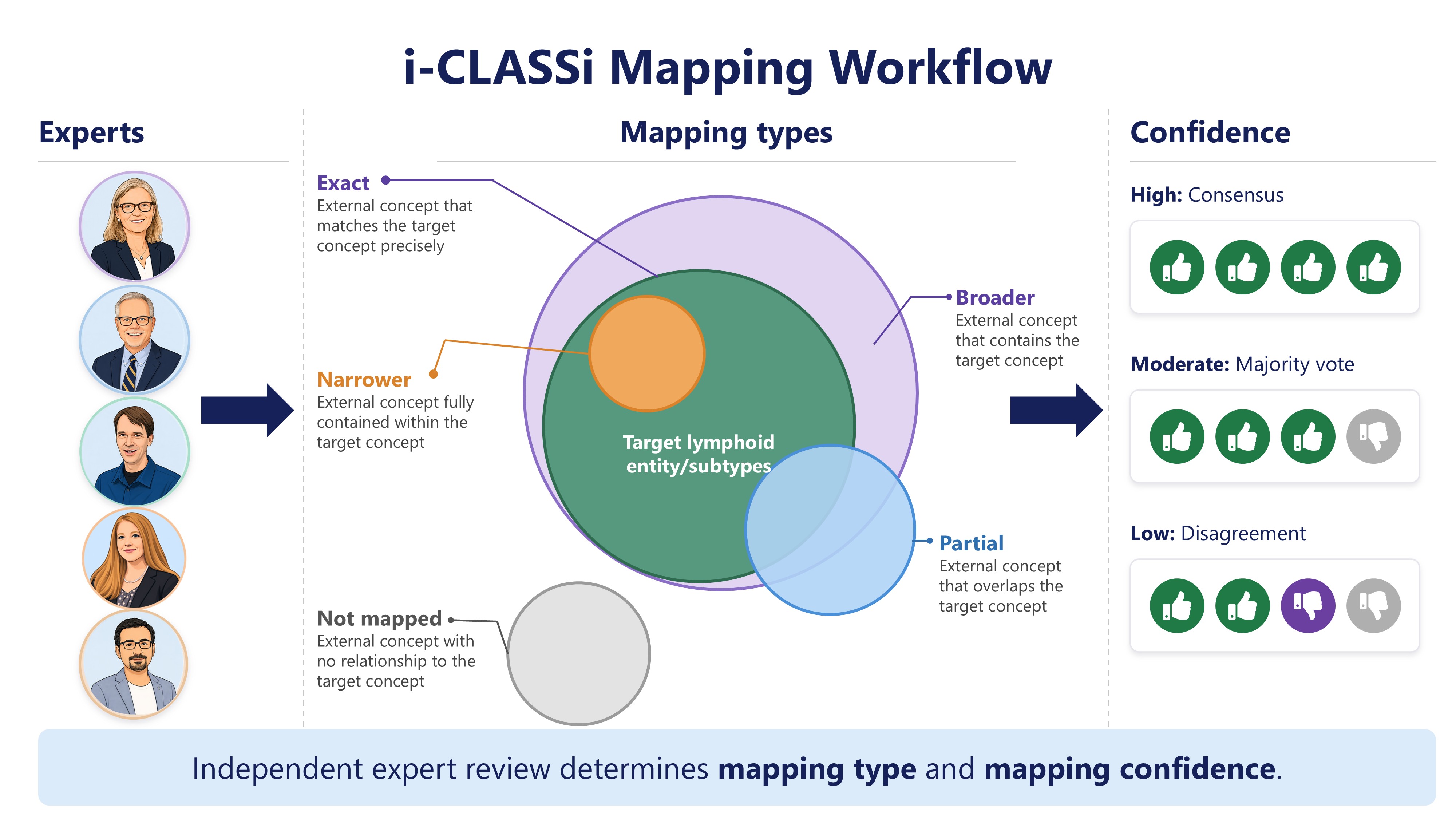
The Mapping tab documents how LNIC entities are linked to external biomedical vocabularies and ontology identifiers. Each row contains one vocabulary code.
How to use it
- Use the Hierarchy Navigator to filter mapping records by any L1-L6 branch and its linked LNIC codes.
- Use Vocabulary, Mapping type, Confidence, and LNIC code or keyword filters to narrow the table.
- Filter by LNIC code to see every vocabulary mapping for one entity.
- Click an LNIC code in the mapping table to show the corresponding L1-L6 i-CLASSi classification context.
- Filter by Vocabulary to compare mappings from UMLS, ICD, EFO, or other displayed sources included in the release.
- Use Mapping type to interpret semantic scope and Mapping confidence to assess agreement across the expert review workflow.
Mapping types
Mapping type describes the semantic relationship between the external concept and the target i-CLASSi lymphoid entity or subtype. The four public mapping categories are:
- exact
- The external code corresponds directly to the i-CLASSi entity.
- narrower
- The external code represents a more specific concept fully contained within the i-CLASSi entity.
- broader
- The external code encompasses the i-CLASSi entity together with additional concepts.
- partial
- The external code overlaps the i-CLASSi entity but is ambiguous, historical, deprecated, or not fully equivalent.
Mapping confidence
Mapping confidence is recorded separately from mapping type. It summarizes agreement after independent expert review and should not be interpreted as semantic closeness.
- High
- Consensus across the expert assessments.
- Moderate
- Majority vote across the expert assessments.
- Low
- Disagreement across the expert assessments.
Column glossary
- Entry ID
- Internal row identifier from the mapping dataset.
- LNIC Code
- i-CLASSi entity identifier being mapped. Click the code to show its L1-L6 classification path above the table.
- Entity-Type
- Main i-CLASSi disease entity associated with the mapping.
- Subtype (s)
- Subtype label or subtype group associated with the mapping row.
- Vocabulary
- External vocabulary, ontology, or coding system.
- Code
- Identifier in the external vocabulary.
- Mapping_type
- Semantic relationship assigned by independent expert assessment: exact, narrower, broader, or partial.
- Vocabulary Prefered Name
- Preferred label from the external vocabulary. The original column name preserves the source spelling.
- Version
- Version or release of the external vocabulary used for the mapping.
- Mapping confidence
- Agreement category recorded after independent expert assessment: High for consensus, Moderate for majority vote, and Low for disagreement.
i-GWASdb Explorer
i-GWASdb links genetic association records to i-CLASSi disease categories. It is intended for browsing GWAS evidence in the context of the classification.
How to use it
- Use the Hierarchy Navigator to filter GWAS records by any L1-L6 branch and its linked LNIC codes.
- Search by LNIC code to find GWAS records mapped to an i-CLASSi entity.
- Click an LNIC code in the table to show the corresponding L1-L6 i-CLASSi classification context.
- Search by rsID, nearest gene, trait, author, or PubMed identifier for literature-driven exploration.
- Click rsID, GWAS Catalog, or PubMed identifiers to open external records in a new browser tab.
- Interpret values in the POS column as GRCh37 genomic coordinates. Convert or lift over positions before comparing them directly with resources using GRCh38.
- Use P values, cytobands, and genomic positions to compare signals across records.
External identifier links
- rsID opens the dbSNP variant page. For example,
rs7176508openshttps://www.ncbi.nlm.nih.gov/snp/?term=rs7176508. - Open Targets appears next to each rsID and searches the Open Targets Platform. For example,
rs7176508openshttps://platform.opentargets.org/search?q=rs7176508&page=1. - GWAS Catalog IDs open EBI GWAS Catalog study pages. For example,
GCST001826openshttps://www.ebi.ac.uk/gwas/studies/GCST001826. - PUBMED IDs open PubMed publication pages. For example,
23047821openshttps://pubmed.ncbi.nlm.nih.gov/23047821/.
Column glossary
- LNIC Code(s)
- One or more i-CLASSi identifiers linked to the GWAS record.
- Study type
- Type or design of the genetic association study.
- CHR
- Chromosome where the reported variant or locus is located.
- Cytoband
- Cytogenetic band for the locus.
- POS
- Genomic position reported for the variant or locus, based on the GRCh37 human genome assembly.
- rsID
- Reference SNP identifier. The rsID link opens dbSNP; the adjacent Open Targets link searches the Open Targets Platform for the same variant.
- EA
- Effect allele reported for the association.
- Nearest gene(s)
- Nearest gene or genes assigned to the reported locus.
- P
- P value for the reported association.
- Author
- Lead author or study author label.
- Reported trait(s)
- Trait name as reported by the study or catalog source.
- EFO traits
- Experimental Factor Ontology trait labels mapped to the reported trait.
- GWAS Catalog
- GWAS Catalog study accession. IDs such as GCST001826 open the corresponding EBI GWAS Catalog study page.
- PUBMED
- PubMed identifier for the associated publication. IDs open the corresponding PubMed record at NCBI.
Abbreviations
The Abbreviations tab is a version-specific reference for acronyms, shortened terms, aliases, categories, and lifecycle status used across i-CLASSi resources.
How to use it
- The selected i-CLASSi version controls which abbreviation JSON file is loaded.
- Search the abbreviation column when you know the acronym.
- Search the full-name column when you know the expanded term but not the abbreviation.
- Search aliases to find alternative abbreviations that resolve to the same canonical term.
- Use category and status filters to distinguish terminology groups and current or retired labels.
- In other tabs, recognized standalone abbreviations show their full name in a tooltip without expanding the table columns.
- Keep this tab open while reading mapping or GWAS rows with dense terminology.
Column glossary
- Abbreviation
- Canonical short form used in the selected i-CLASSi version.
- Full name
- Expanded term represented by the canonical abbreviation.
- Category
- Terminology group, such as classification, biomarker, clinical, or data-source terminology.
- Status
- Lifecycle state for the selected release, such as current or retired.
- Aliases
- Alternative short forms that resolve to the same full name and tooltip definition.
Data Sources
The Data Sources tab records the external resources and source snapshots used by each selectable i-CLASSi version.
How to use it
- Select an i-CLASSi version in the top-right corner to load provenance metadata for that release.
- Review the snapshot date before comparing i-CLASSi counts with a live external database, because external resources continue to change.
- Use the reported genome assembly and reference database build when interpreting genomic positions and variant identifiers.
- Open the source website for current records, policies, citations, and updated database totals.
- Prototype versions are documented as demonstration subsets when they reuse a source snapshot from the beta release.